Documentation
Quick Start with Access Token
In this guide, you'll learn how to authenticate your API calls using the AstrologyAPI Access Token (Wallet Token). We'll cover direct API requests and integration using Postman.
Test Your First API Call
Use your Access Token to make a direct API call. Below are examples of how to integrate the Western Horoscope API using different environments.
curl --location 'https://json.astrologyapi.com/v1/western_horoscope' \
  --header 'Content-Type: application/json' \
  --header 'x-astrologyapi-key: <YOUR_ACCESS_TOKEN>' \
  --data '{
    "day": 12,
    "month": 3,
    "year": 1993,
    "hour": 14,
    "min": 15,
    "lat": 19.076,
    "lon": 72.8777,
    "tzone": 5.5,
    "house_type": "placidus",
    "is_asteroids": "false"
}'
Using Postman
Follow these steps to configure your Postman environment for authenticating with Access Tokens.
Before You Start
Make sure you have your Access Token (also referred to as a Wallet Access Token) from your dashboard. If you don't have one, you can get it from the Credentials page. You will also need a tool like Postman to make the API calls.
Step 1: Initial Setup
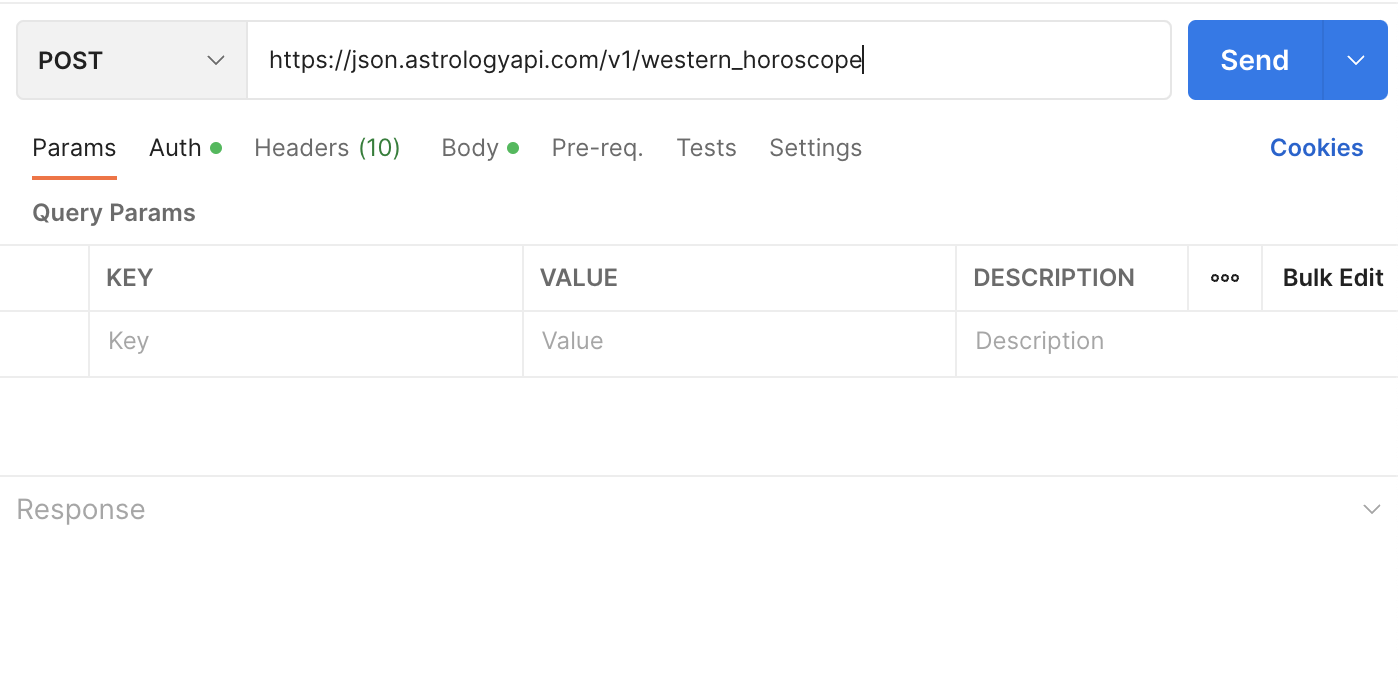
- Open POSTMAN on your computer.
- Select the HTTP method as POST for wallet-specific APIs like /moon_biorhythm or Chat APIs.
- Enter the full URL of the API you wish to call.
Step 2: Add Access Token Authentication
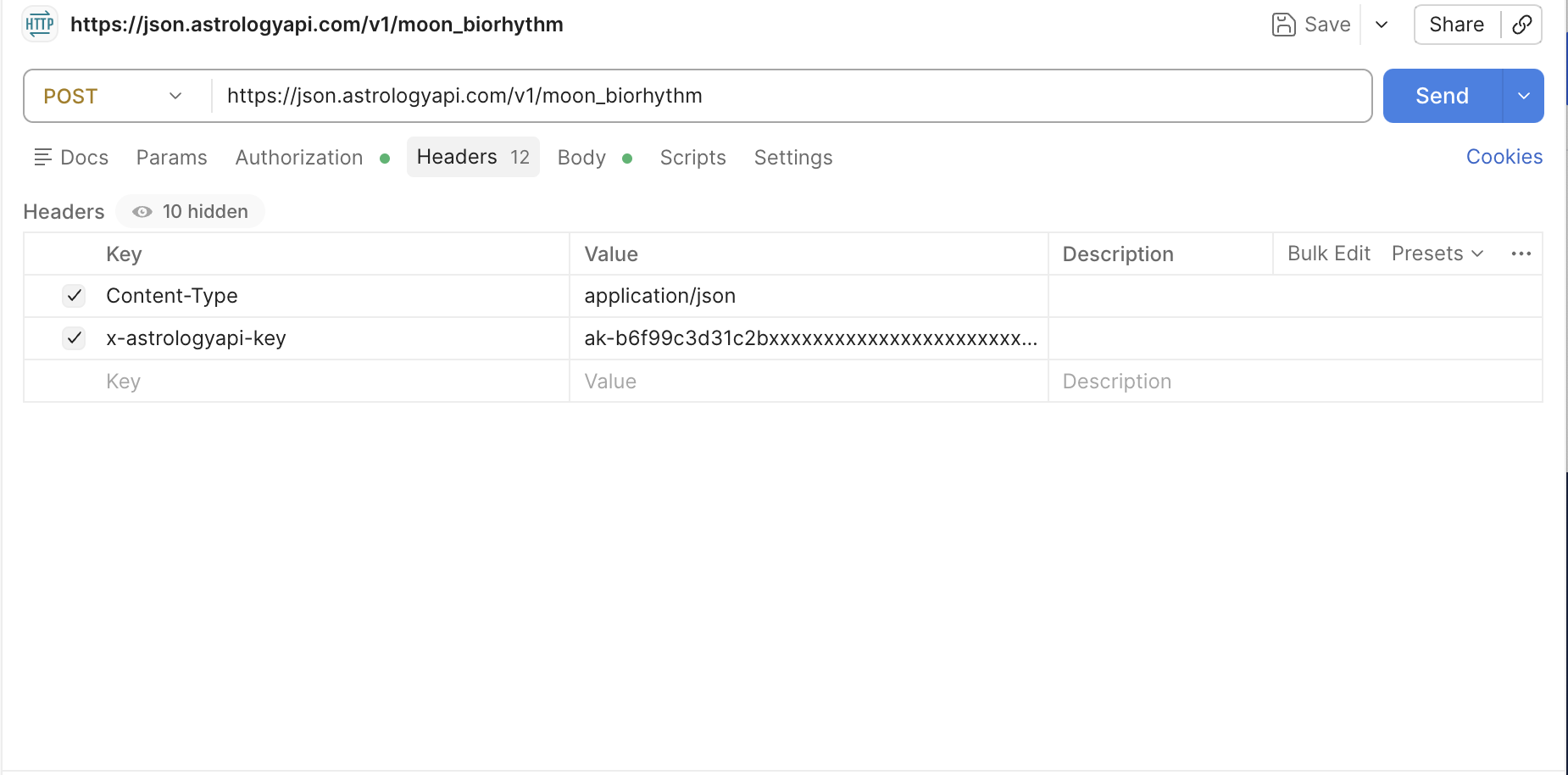
- Instead of the Auth tab, Navigate to the Headers tab in Postman.
- Add a new header key named: x-astrologyapi-key.
- In the value field, paste your Access Token.
Step 3: Add Request Parameters
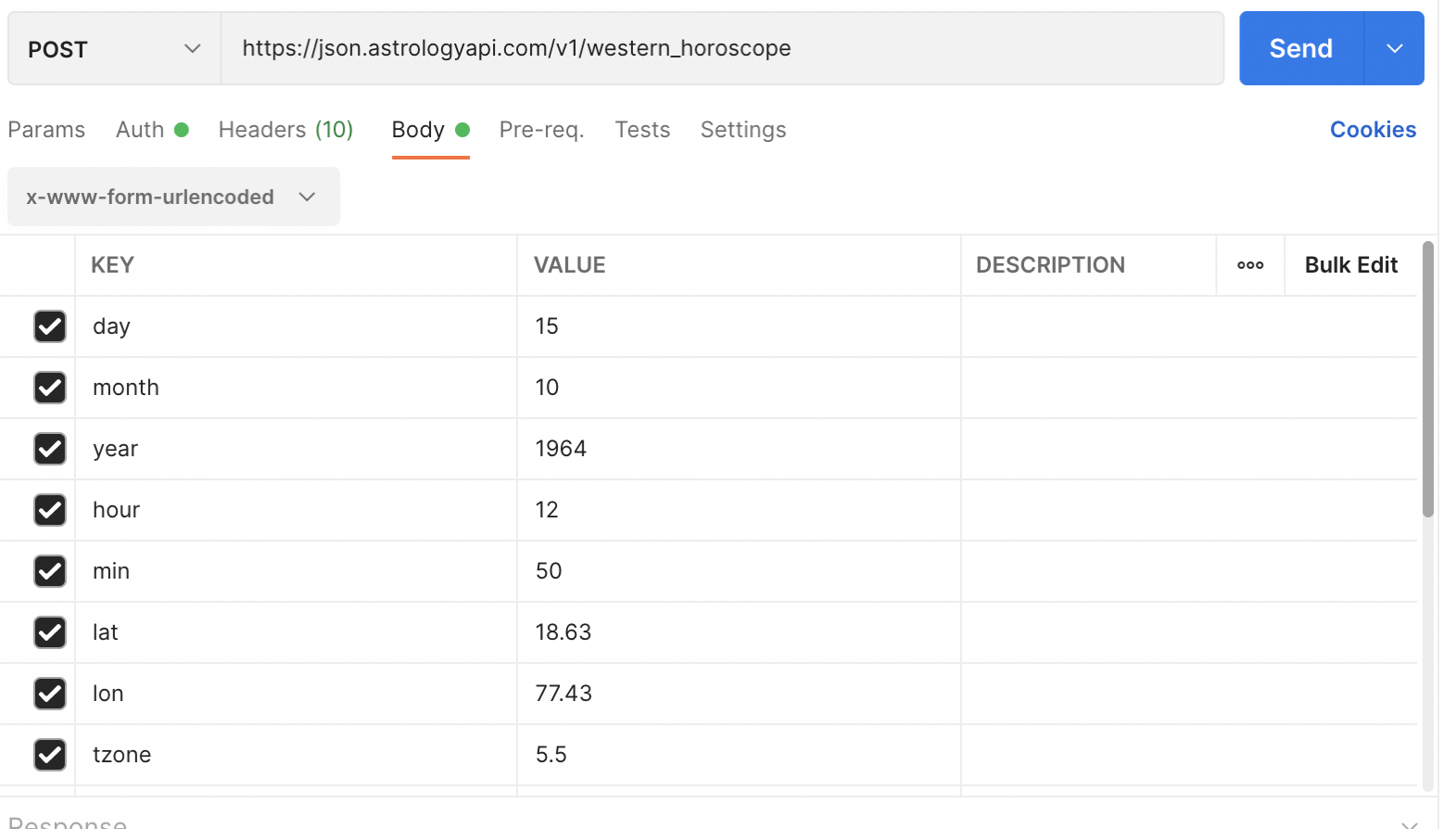
- Go to the Body tab and select raw with JSON format.
- Provide the required input parameters in the JSON body as per the API documentation.
Step 4: Send Request
Once you have added the custom header and the request body, click the Send button. You will receive the astrological insights in JSON format.
Authentication via Access Token allows for highly secure, wallet-based interactions across our modern API suite.